Browse as You: Real-Profile Browsing in Hermes Agent
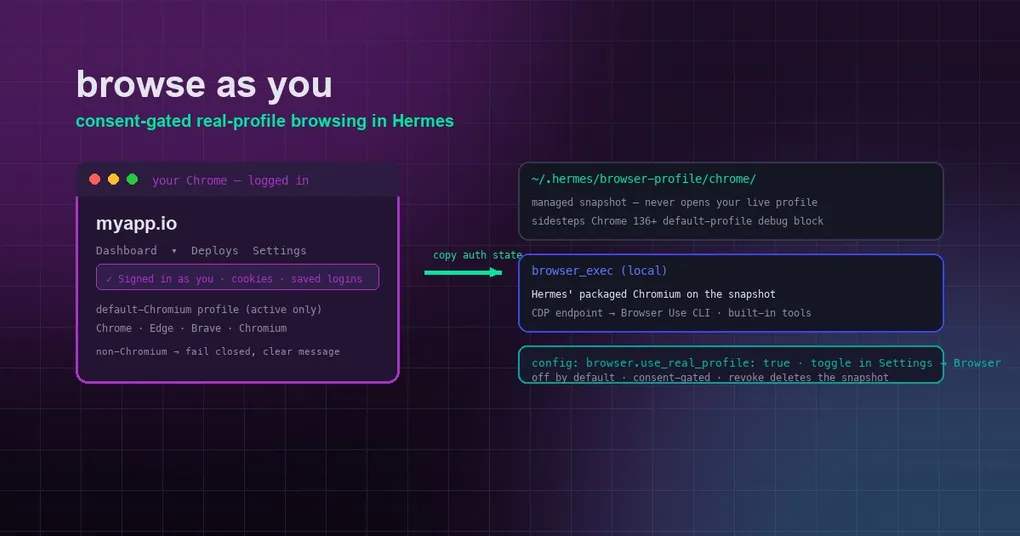
Your agent finds a page behind a login wall, and the whole task grinds to a halt: it can’t see your dashboard, your admin panel, or that internal wiki you use every day. So you end up doing the copy-paste dance — fetching the info yourself and pasting it into the chat. It works, but it’s exactly the kind of friction agents are supposed to remove. With real-profile browsing, new in Hermes v0.20.6 (commits #1f4d095fd8, #830e4a29be), the agent can browse as you — with your real logins and cookies — under explicit consent and off by default.
The mechanism is careful by design. Hermes doesn’t open your live browser profile directly; it copies your default browser’s active profile into a managed snapshot and drives that snapshot with its own packaged Chromium. Let’s look at how it works, how to turn it on, and what to watch out for on Windows.
How it works: a snapshot, never your live profile
When real-profile browsing is enabled, Hermes does four things:
- Finds your active profile. It reads your default Chromium-family browser’s
Local State → profile.last_usedto find the profile you actually browse with. - Copies it into a managed snapshot under
~/.hermes/browser-profile/<browser>/— cookies, saved logins, preferences and all. - Launches its packaged Chromium on the snapshot and hands the CDP endpoint to the Browser Use CLI and built-in tools.
- Re-syncs auth on every fresh session. Cookies and logins are copied again whenever a new session launches, so logins you do in your own browser show up in the agent’s session.
Why a snapshot instead of opening your real profile? Three reasons:
- No profile-lock fights. A separate directory never contends with your running browser for the profile lock.
- It sidesteps Chrome 136+’s block on remote-debugging the default profile directory.
- Consent is revocable. Turn the toggle off and Hermes deletes the whole snapshot store on the next browser use — your copied credentials don’t linger after you withdraw consent.
Only the active profile is copied — other Chrome profiles are never snapshotted. The snapshot is launched without mock-keychain switches, so keyring-encrypted cookies decrypt properly.
Enabling it
Config file:
# ~/.hermes/config.yaml
browser:
  use_real_profile: true
Desktop: Settings → Browser → Use My Real Browser Profile.
In the browser_exec tool, a local argument appears only when the toggle is on — it forces a real-profile local session even under a cloud browser backend, while the cloud backend keeps serving everything else. The argument is schema-gated, so the model can’t use it unless you’ve consented.
Supported browsers: Chrome, Edge, Brave, Chromium — whichever is your OS default. A non-Chromium default (e.g. Firefox) fails closed with a clear message rather than guessing. The snapshot path is a non-default directory, which is exactly what keeps it legal under Chrome 136+’s default-profile debugging block.
The Windows caveat: fully quit the browser
Windows has a real quirk you should know about before enabling this: a running Chrome/Edge/Brave holds its cookie and login databases with an exclusive (deny-all) lock, so Hermes cannot copy them while the browser is open. It fails fast with a “fully quit the browser and retry” message rather than hang or produce a signed-out session.
This includes background/tray instances — Chrome’s “continue running background apps when closed” keeps a chrome.exe alive after you close the window. macOS and Linux can copy the profile while the browser is running.
If you’d like Hermes to offer to close the browser for you when it’s holding the profile:
browser:
  use_real_profile: true
  real_profile_autoclose: true
Even with autoclose on, Hermes never closes it automatically: when the profile is locked it always stops and the agent asks you first; only on your approval does it run hermes browser close-profile (which terminates the browser process tree bound to that profile — unsaved tabs are lost), then retries. If the profile is still locked after that (a tray instance relaunched, say), Hermes stays blocked and tells you to fully quit the browser — no loop, no repeated kills.
What you can do with it
The scenarios where “browse as me” pays off:
- Internal tools and dashboards. “Check the deployment page and tell me what version is live” — no more login-wall dead ends.
- Admin panels. The agent can inspect settings, run reports, or verify config changes against the live UI.
- Sites you’re already logged into. Pull data from services where your session carries access (your analytics, your billing portal, your project management tool).
- Paid or gated content. The agent reads what you can read — with your cookies.
The flip side is the security framing, stated plainly in the docs: this is consent-gated convenience, not an isolation boundary. A page the agent visits runs with your real logins. Enable it when you want the agent acting as you; leave it off otherwise. It’s off by default for exactly this reason.
Where it fits in the browser stack
Real-profile browsing is the third rung of Hermes’ browser capabilities, alongside the Browser Use CLI for automated browsing and the browser snapshot budget that keeps session memory cheap. For a fuller picture of what the browser subsystem can do — including the remote MCP catalog that powers tool discovery — see our remote MCP catalog guide and the v0.20.6 release notes.
Bottom line
Real-profile browsing closes the loop on a decade-old agent limitation: the agent’s browser starts logged out, so anything behind a login was off-limits. Now, with one toggle, the agent browses as you — via a revocable snapshot that never touches your live profile, with consent required at every step. Enable it, give your agent the “check the dashboard” tasks you’ve been doing by hand, and watch the copy-paste dance disappear.