Give Hermes a Screen: Wiring Sai Computer-Use Into Your Agent
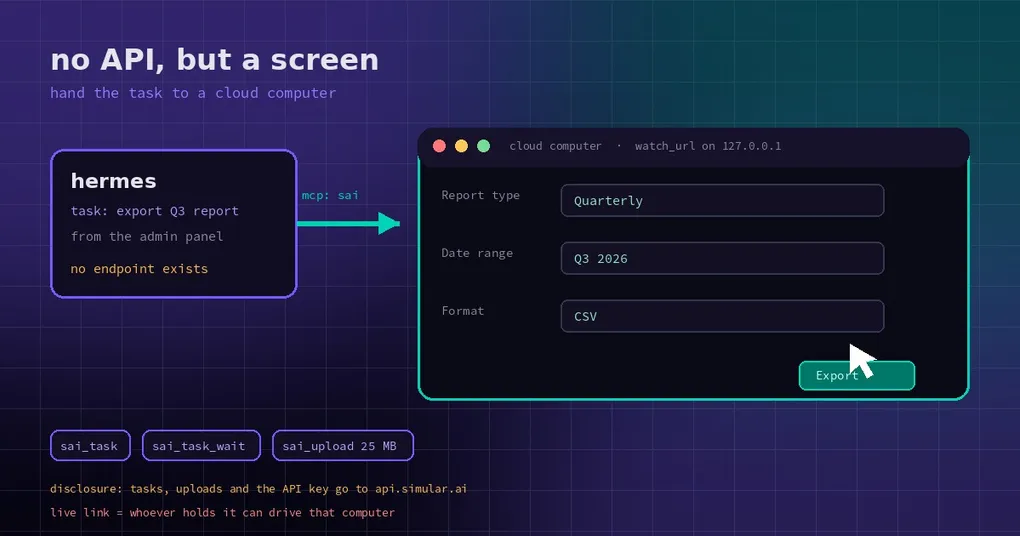
End of the quarter, and you open the same internal admin panel you have opened for five years. There is no API documentation, login runs through a captcha, and the report you need sits three screens deep behind a dropdown. You want the agent to do it for you, and it stalls at step one — there is nothing to POST. A screen is the only interface this system has ever had, and it has always been the agent’s blind spot.
Sai by Simular fills exactly that gap. It is a computer-use agent that runs on a cloud computer: you hand it a task in words, it opens pages, clicks buttons and fills forms the way a person would, then reports back in text. On the Hermes side the job is just to wire that capability in — and that wiring now lives in the official plugin catalog.
The no-API world is bigger than you think
We default to reading automation as “call the endpoint”. Real work says otherwise: legacy internal back panels, admin-only consoles, SaaS pages you cannot reach without a session, filing forms that only exist as HTML. What they share is that a human can operate them and a machine cannot call them.
The old answer was Selenium scripts, one selector set per page, all of it broken by the next redesign. Sai takes a different path: it does not maintain selectors, it looks at the screen and decides the next step with a model. The trade-off is speed — every click costs a model decision — and the payoff is that the automation does not shatter when the page moves a button.
That also defines Hermes’ role here. Scheduling, context, memory and approvals stay local. The part that physically clicks belongs to a computer somewhere else. Task text, the files you ask it to upload, and your API key go to api.simular.ai, and the cloud computer runs there.
Three things to check before you install
Node.js first. The plugin ships no code of its own — it is an Agent Plugins v1 package (plugin.json, mcp.json, skills/) — the actual capability is the npm package @simular-ai/sai-mcp, pinned at 0.4.0 and started with npx. So you need Node.js 22.12 or later plus npm on the machine.
Second, a Sai API key. Create one under API Keys at platform.simular.ai; keys look like sapi_.... The free plan includes one cloud computer and a daily allowance, which is enough to prove the flow works.
Third, the data boundary. Worth deciding before you install, not after: task content, any file the agent uploads, and the API key all leave your machine for Simular’s API, and tasks draw on your Sai account’s credit. This is not a local tool; it is an explicit service call.
Two commands to install
The entry in the official catalog is simular-sai:
hermes plugins install simular-sai --no-enable
hermes plugins enable simular-sai
The first command pulls the pinned commit (365b247, plugin version 0.1.2) and installs it disabled, so you can set the key before anything runs. The second turns it on.
Put the key in Desktop under Settings > Plugins, or in the active profile’s .env:
SAI_API_KEY=sapi_your_key_hereRestart the gateway afterwards so the new process sees the environment. To confirm what you actually installed:
hermes plugins info simular-saiThe output lists the version, the pinned commit, the required Hermes version (>=0.21.6) and the full data disclosure. For how the catalog itself works, see the plugin catalog guide.
What one task looks like end to end
Once enabled, Hermes has a new MCP server (sai) and a skill (simular-sai:sai). The skill decides when a task should be handed over; the server does the work: start a task, wait for it, answer permission requests, stop it, upload a file, list computers and models, and hand the screen to a human.
One sentence is enough to trigger it:
Use Sai to open Notepad on my cloud computer, type Hello from Sai, and tell me the window title.Behind that sentence:
- Start. Hermes passes the goal and its context to Sai, which begins operating on the cloud computer.
- Wait. Tasks are not instant — you poll. Do not expect API latency.
- Answer permissions. When Sai wants to run a command or write a file on its own computer, it asks first, and Hermes answers on your behalf. So a single task has two approval layers: Hermes’ own tool approvals, plus Sai’s internal ones.
- Collect text. The result comes back as text, not a screenshot reel.
- Optional handoff. If a step genuinely needs a person,
sai_live_linkreturns a link that lets whoever holds it drive that cloud computer until it expires.
There is one nice touch during a run: a live view is served on 127.0.0.1 (exposed as watch_url), so you can watch the cloud computer work. Your API key never reaches that browser.
Boundaries that bite later
Do not use it as a browser. If you are scraping a public page or filling a form whose endpoint you can call, the browser CDP tools are dramatically faster and cheaper. Sai earns its place only where “no API” and “needs human-style operation” overlap.
Uploads are capped. sai_upload sends a local file to the cloud computer, up to 25 MB per file. This is not a data-mover.
A live link is a real key. Anyone holding the sai_live_link URL can operate your cloud computer until expires_at. The skill instructs the agent to give it only to you, but that rule is enforced by a model, not by a lock — pasted into a group chat, it does not come back.
No trust: untrusted gate, deliberately. Sai’s tools carry no readOnlyHint, so a trust gate would prompt on every sai_task_wait poll and the task would never finish. The substitute is Sai’s own needs_approval step, which still asks before commands and file writes.
It is not cheap, and should not be hot. Every click is a model inference. It suits “three times a day, ten minutes each”; it does not suit “every minute”. For token-frugal routine work, stay on Hermes’ own tools.
When it is worth it
My rule: if a workflow is something you do by hand every month, requires a login, requires clicking through a stack of pages, and has no API — hand it to Sai once and see. Anything a curl call or a built-in tool can do should not take this detour.
Installing is two commands; the real decision is which tasks you are willing to send, and whether any of them carry material that should not sit on someone else’s server. Settle those two questions and the configuration takes ten minutes. If permission boundaries are what worry you, the plugin isolation and host boundary guide is the companion read.