Watch Your Bot Work — and Take the Mouse When It Hits a Login
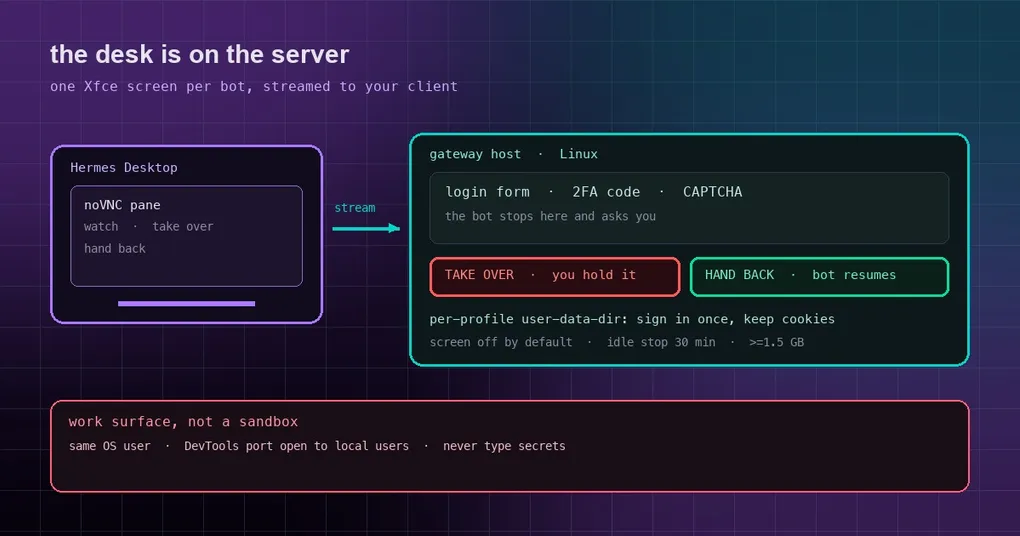
Your bot gets stuck at 3am on a vendor portal that wants a sign-in. It tells you so in chat and ends its turn, and everything after that is guesswork: which page it stopped on, whether it mangled the form it submitted a minute earlier. By the time you get to it the session has gone cold, and it may have clicked something else in the meantime. Bot Screen exists to delete that guesswork. On a headless Linux host, every profile now has its own desktop, streamed live into Hermes Desktop. You can watch the bot work, take over the keyboard and mouse when it needs you, then hand back and let it continue.
What it actually is
One sentence: each bot gets its own Xfce desktop, running on the gateway host.
- The bot’s
computer_use(desktop automation) and its headed browser (browser.headed: true) act on that screen. - The screen is streamed into a pane in Hermes Desktop over noVNC.
- Every profile has its own screen, its own browser profile and its own cookies.
- The important part: the screen lives on the gateway host, not on your laptop. Close the app, shut the lid — the bot keeps working on the server.
That is the difference from “remote desktop back to my own machine”: the agent runs on the server, the desktop runs on the server, and your client is just a window into it.
What you use it for: logins, 2FA, CAPTCHAs, payments
The bot should not do these steps by itself, and it should not block waiting on you:
- It hits a login, 2FA, CAPTCHA or payment step, says so in its reply, and ends its turn.
- The ask reaches you in whatever chat you are on — Telegram, Slack, Desktop.
- When you are free, open the pane and click Take over. The border turns red; your keyboard and mouse now drive it.
- Sign in, solve the CAPTCHA, approve the payment.
- Click Hand back. The bot regains control and re-captures the screen before continuing.
Two details are worth noting. A bot never holds a tool call open waiting for you — taking over is always yours to start. And when two viewers fight over one screen, the most recent Take over wins; the previous controller drops back to watching. “Hand back” and “dropped connection” are also different things: if your lid closes or Wi-Fi drops while you hold control, you keep it — the bot stays locked out of a screen you may be mid-login on — until you reconnect and hand back. If a reload leaves the pane claiming a human still holds control, a Hand back (force) button appears.
Getting started
Requirement: the gateway host runs Linux. macOS and Windows hosts already have a real display, and the pane is not offered there.
The desktop packages (TigerVNC’s Xvnc plus the Xfce core) are never installed silently — hermes update and fresh installs leave the machine as it is. When they are missing, the Desktop pane shows Install on host: one click runs the package manager on that host, asking for that host’s sudo password in a masked card (the password goes to that host only and is never stored).
The official Docker image — which also powers Hermes Cloud — is the other case: the gateway runs as an unprivileged user and the image has no sudo, so the pane prints the exact line and an operator runs it once as root inside the container:
docker exec -u 0 <container> apt-get install -y \
  tigervnc-standalone-server xfce4-panel xfwm4 xfdesktop4 xfce4-settings \
  xfce4-terminal dbus-x11 x11-xserver-utils x11-utils xauth fonts-dejavu-core
The same operations from a shell:
hermes computer-use screen status     # installed? running? who holds control?
hermes computer-use screen start      # start this profile's screen
hermes computer-use screen stop       # refuses while a human holds control
hermes computer-use screen stop --force   # force it, and clear a stuck lease
hermes computer-use screen install [-y]   # run apt/dnf/pacman
hermes -p research computer-use screen start   # another profile's screen
The screen is off by default and nothing starts it for you. bot_desktop.auto_start is false; turn it on and a headless host brings its screen up on the bot’s first computer_use call or first headed browser use. The default is deliberate — installing TigerVNC for unrelated reasons should not conjure a screen nobody asked for.
bot_desktop:
  geometry: "1440x900"      # screen size; the viewer scales to fit the pane
  auto_start: false         # true = start on first computer_use / headed browser use
  min_free_memory_mb: 1536  # refuse to start below this much free memory (0 = never check)
  idle_stop_minutes: 30     # stop a screen nobody used for this long (0 = keep it up)
Do the memory maths first
The desktop is cheap; the browser is the cost. Measured in the official image:
| Item | Footprint |
|---|---|
| Gateway idle | ~300 MB |
| Xvnc + Xfce | ~220 MB |
| Headed Chromium opened during a takeover | 0.5–1 GB (~550 MB for one page) |
| CPU | essentially free (idle desktop ≈ 0.01 core) |
| Disk, packages on Debian 13 | ~930 MB |
Budget 1.1–1.5 GB per open screen with a browser. The official guidance: 4 GB runs the desktop, 8 GB is where a takeover with a browser is comfortable. Before starting, Hermes checks that the host — or its container cgroup, whichever is tighter — has min_free_memory_mb free; below that it refuses and says so in the pane, and a screen already running is never taken down by the check. Idle screens stop after idle_stop_minutes (30 by default) and return on the next use.
New since 2026-09-23: two image variants
A hosted deployment (Fly Machines, Azure container instances) cannot install anything at run time, so the packages have to be built in. CI now publishes two variants of every version:
- the unsuffixed tags (
:latest,:v*) — without the packages; - the
-desktoptags (:latest-desktop,:v*-desktop) — with TigerVNC, the Xfce components and the distro Chromium.
Pull the suffixed tag on a hosted instance and Bot Screen is there. Today’s caveat, stated plainly in the docs: nothing in the provisioner selects -desktop yet, so a hosted instance still comes up slim — pulling the suffixed tag yourself works. Building your own image is opt-in too; the official build argument is off by default so a plain docker build . stays lean:
docker build --build-arg HERMES_BOT_DESKTOP=1 -t hermes-agent:screen .A day later (2026-09-24) a companion change landed: every image, including the slim non-desktop tags, now carries the full Chromium build instead of Playwright’s lighter headless shell — one pinned, checksummed browser serves both headless browsing and headed Bot Screen sessions, at the cost of a larger image.
Browser sessions survive the handoff
This is the most practical thing about Bot Screen: the bot’s browser tool and the pane’s Browser icon are the same browser. Each bot carries one persistent user-data directory (<HERMES_HOME>/bot-desktop/browser-profile), so during a takeover you are in the bot’s own windows and cookie jar — and what you sign in to is what the bot uses afterwards, in this run and every later session, until the site expires the login.
Set browser.headed: true if you want the bot’s own browsing visible on the screen too. Note that the dock is seeded once, on the first screen start for a profile: the guard is the panel layout file <HERMES_HOME>/bot-desktop/xdg/xfce4/xfconf/xfce-perchannel-xml/xfce4-panel.xml. While it exists, changing AGENT_BROWSER_EXECUTABLE_PATH or AGENT_BROWSER_PROFILE and restarting does not re-pin the Browser icon — delete that file and the dock rebuilds on the next screen start.
The security boundary: a work surface, not a sandbox
The docs say this bluntly, and it is worth repeating verbatim in spirit: the screen’s RFB socket, the X display, the browser profile and the control-lease file all belong to the gateway’s OS user. Any process running as that user — another bot on the same host, and the bot’s own terminal tool — can reach them directly, bypassing the pane and the lease. The lease is a tool-level fence on computer_use and the browser tools, not an OS one.
One boundary is wider than the OS user: Chromium’s DevTools port (the dock’s Browser and every agent-browser launch advertise one on loopback) is reachable by any local user on the host, and Chromium offers no per-user restriction for it. Running each bot as its own OS user is out of scope; if that isolation matters, or the host has untrusted local users, put the bots on separate hosts.
Two timing details: the WebSocket bridge caches its lease decision for up to 250 ms, so a takeover made by another process is enforced within that window. And the viewer’s single-use, 30-second display_ticket travels as a URL query parameter on purpose (noVNC cannot negotiate WebSocket subprotocols), which means a reverse proxy’s access log may record an already-spent ticket.
The short version: do not type secrets into a bot you would not trust with them.
The takeaway
Bot Screen turns “the bot is stuck at a login page” from a blind guess into a click, a takeover, and a hand-back — with the screen staying on the server so your laptop can come and go. Off by default, reclaimed when idle, and gated by an explicit memory check, it will not quietly eat a small instance. To go deeper, read the Bot Mode guide for how profiles become named bots, what a shared Docker container means for parallel agents, and the rest of this window on the v0.21.5 release page.