Running several Hermes Profiles means several Docker containers? One config key lets them share a single one
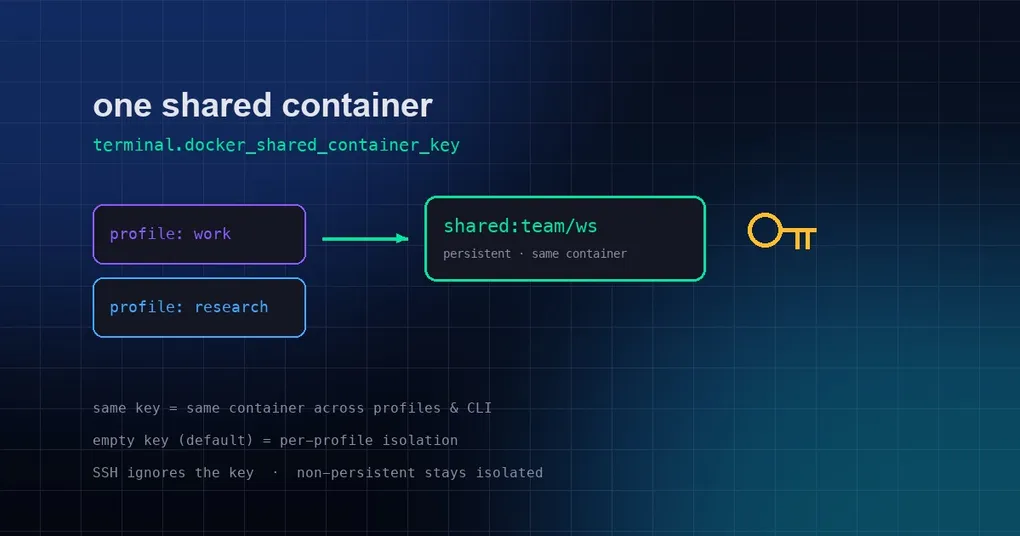
You run three Hermes Profiles: one for work, one for personal projects, one for experiments. Each Profile is configured with the Docker terminal backend, so every time you get going, several containers spin up on your machine — more disk, slower starts, dependencies installed separately in each, and environment changes that have to be synced container by container. PR #94633, merged on August 25, offers an elegant fix: trusted Profiles can share one persistent Docker container, controlled by a single config key.
Before: one container per Profile
First, the default behavior. Hermes’ Docker backend (terminal.backend: docker) gives each Profile its own container — the isolation rule just established the same day by PR #94560: containers are scoped and named per Profile (profile:<name>), no cross-talk. The upside is clean isolation; the downside is duplicated resources: three Profiles means three sets of dependencies, three caches, three environments.
If you mainly use Docker for one-off isolated tasks, that default is fine — no changes needed. But if several of your Profiles are “trusted family” — say a work Profile and an experiments Profile that actually use the same dev environment — the duplication is pure waste.
Now: one key, one container
PR #94633 introduces a new config key: terminal.docker_shared_container_key. The rules are simple:
- Unset (default empty string): current behavior, each Profile keeps its own container;
- Multiple Profiles set to the same value: they share one persistent container, identified as
shared:<your-key>; - Direct CLI runs (no Profile context) with the same key configured also land in that shared container.
Configuration:
hermes config set terminal.docker_shared_container_key team/wsOr edit the config file directly (hermes config path shows its location):
terminal:
  backend: docker
  docker_shared_container_key: "team/ws"
Once work and research Profiles both use team/ws, their commands land in the same container: install dependencies once and everyone sees them, caches stay warm, environment changes apply in one place. In the official tests, the two Profiles resolve to the same shared:team/ws container key.
Cases where sharing is deliberately ignored
This isn’t a mindless merge — three boundaries are worth knowing:
- SSH backends don’t participate:
terminal.docker_shared_container_keyonly affects the Docker backend; SSH environments ignore it entirely; - Non-persistent mode stays isolated: if you use throwaway (non-persistent) Docker sessions, the shared key will not stuff two ephemeral sessions into one container — per-session isolation remains;
- Different keys = no sharing: the key is the isolation boundary; Profiles with different values each use their own container.
Also, files produced in the shared container (e.g. MEDIA attachments) are still retrievable from sessions — the official tests specifically covered media delivery from the shared sandbox.
When to enable it, when to leave it alone
Good candidates: Profiles that are really different entry points into the same dev environment; a shared “environment container” for a team; personal multi-Profile users who want to save disk and startup time.
Keep the default: Profiles with low mutual trust (e.g. hosting untrusted automation); environments that need strict audit isolation; experimental Profiles whose dependency versions might clash. Isolation is always safer than sharing — the shared key is for “trusted” Profiles, which is exactly what “trusted profiles” in the PR title means.
Summary
One config key turns “one Docker container per Profile” into “one container for the family”: terminal.docker_shared_container_key left empty keeps the default isolation, while multiple Profiles setting the same value share one persistent container. For more on multi-Profile workflows, see our Profile multi-instance guide; for config-file operations, the hermes config command reference covers the rest. Still deciding whether Docker is the right backend? The install guide walks through all backend options.