Commanding Your Agent From a Train: A Field Guide to the Community WebUI
You are on the train home when it hits you: did that cron job actually run this morning? Out comes the phone. Nothing in your inbox. No Telegram bot configured either. So you wait until you are at your desk — by which point dinner has erased the question entirely.
The problem is not that Hermes cannot be used remotely. It is that “remote” usually means assembling a tunnel plus a frontend, and most people never bother. One community project compresses that into three commands: Hermes WebUI, roughly 18K stars, a Python backend with plain JavaScript on the front, no build step, no bundler, running on the Hermes config and models you already have.
What it is, and why it earns the install
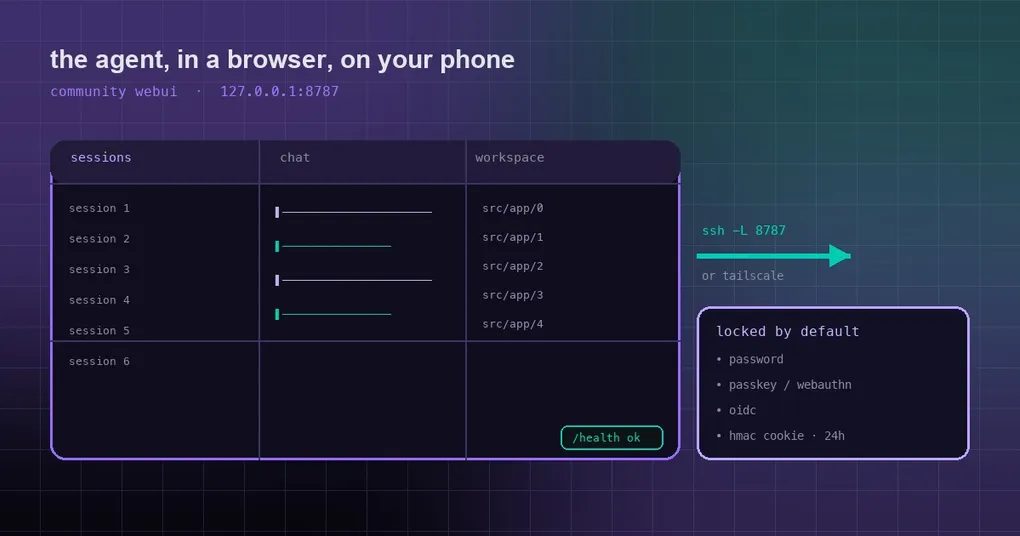
You get the familiar three-panel layout: sessions and navigation on the left, chat in the middle, a workspace file browser on the right. Model, profile, and workspace controls sit in the composer footer so they stay visible while you type, and a circular ring shows context usage at a glance. Everything else lives in the Hermes Control Center, opened from a button at the bottom of the sidebar.
The headline property is near 1:1 parity with the CLI: what you can do in a terminal, you can mostly do here. Pinning, archiving, and grouping sessions into projects; searching and previewing skills, editing them in place; editing MEMORY.md and USER.md; creating, pausing, and inspecting cron jobs with run history and completion alerts; switching and cloning profiles; autocomplete for slash commands like /compress, /model, /new, and /theme.
On a phone it is properly responsive: the sidebar collapses into a slide-in drawer below 640px, touch targets stay at least 44px, and the file browser becomes a panel that slides in from the right. It also ships as an installable PWA, which makes it feel like an app rather than a web page once it is on your home screen.
Three commands to install — and prove it locally first
git clone https://github.com/nesquena/hermes-webui.git hermes-webui
cd hermes-webui
python3 bootstrap.py
bootstrap.py does the annoying parts: it detects Hermes and runs the official installer if it is missing, finds or creates a Python environment with the WebUI dependencies, starts the server and waits for /health, then opens your browser into a first-run wizard. Pass --no-browser if you would rather it did not.
If you prefer managing a daemon, the repo also ships ctl.sh, which is friendlier on a self-hosted VM because it does not need fuser or pkill:
./ctl.sh start              # background daemon, PID at ~/.hermes/webui.pid
./ctl.sh status             # PID, uptime, bound host/port, log path, /health
./ctl.sh logs --lines 100   # tail ~/.hermes/webui.log
./ctl.sh restart
./ctl.sh stop
The server binds 127.0.0.1:8787 by default — in other words, get a session working locally before you think about remote access. The health check is always available to verify by hand:
curl http://127.0.0.1:8787/healthRemote and mobile: two paths, neither of which needs an open port
The safe default is an SSH tunnel. The server stays on loopback and you reach it from outside:
ssh -N -L 8787:127.0.0.1:8787 user@your-serverThen open http://127.0.0.1:8787 in your local browser. You do not even need a desktop SSH client on the phone — plenty of mobile terminal apps can hold a tunnel open.
The convenient option is Tailscale. Put the server and the phone on the same tailnet and bind the service to all interfaces:
HERMES_WEBUI_HOST=0.0.0.0 HERMES_WEBUI_PASSWORD='pick-your-own' ./ctl.sh startThen browse to http://<server-tailscale-ip>:8787 from the phone. Note the two conditions in that second half: the password is not optional, and port 8787 should exist only inside the tailnet — resist the urge to open it in a cloud security group.
Security: frictionless on localhost, locked down when you go remote
The security model is refreshingly honest about intent: password auth is off by default, because localhost access never needed it. Going remote means turning things on yourself.
HERMES_WEBUI_PASSWORDas an environment variable, or a password set in the Settings panel;- passkeys / WebAuthn: sign in with the password, register a passkey under Settings, and once at least one exists you can drop the password and go passkey-only (with the password retained as a recovery path);
- native OIDC, configured with
webui_oidc.issuer,client_id,allow_claim, andallow_values— all four are required before OIDC turns on, and startup warns you if the config is partial; - after login you get an HMAC-signed HTTP-only cookie with a 24-hour TTL, security headers on responses, a 20MB POST body limit, and CDN assets pinned with SRI hashes.
One warning stands out: if you put it behind a reverse proxy, do not use the proxy’s basic auth. PWA updates fetch the service worker, and proxy auth blocks those fetches, leaving an installed app on a blank screen after an update. The docs include recovery steps — and it is why Tailscale or a tunnel is the recommended path.
If you are already deep in remote-access plumbing, the OAuth-over-SSH write-up may save you a few hours.
Where the edges are
The bootstrap does not support native Windows. Use Linux, macOS, or WSL2. A community-maintained native Windows guide exists, but you are on your own there.
Chat does not go through an external API server by default. The WebUI runs the Hermes agent in-process, reading your HERMES_HOME config directly. If you already have an OpenAI-compatible endpoint, there are two supported uses: add it under Settings as a custom provider with its base URL and bearer token, or route chat through a running Hermes Gateway API server with HERMES_WEBUI_CHAT_BACKEND=gateway. The second path does not yet ship full agent-loop delegation — there is an open issue for it — so treat that mode as workable but not identical to running locally.
Mobile-native alternatives are still early. A phone app repository appeared on September 19 with a PRD and no implementation, and there are earlier Android experiments. For now, the WebUI is the most mature and most actively maintained route, and it has an entry in our ecosystem directory.
Ninety minutes from here
Back to the train: install the WebUI, join Tailscale, add it to your home screen. Next time you wonder whether that cron job ran, you check from your pocket — and while you are there, ask it to turn the failed build logs into three conclusions and send them over.
If Hermes itself is not set up yet, start with the install guide; if you want your desktop and remote clients pointed at one backend, the gateway command reference covers it. Running an agent remotely should be the easy part.