Hermes Can Now Use Your Password Manager: Sign-Ins, Cards, and 2FA Without Handing Over the Password
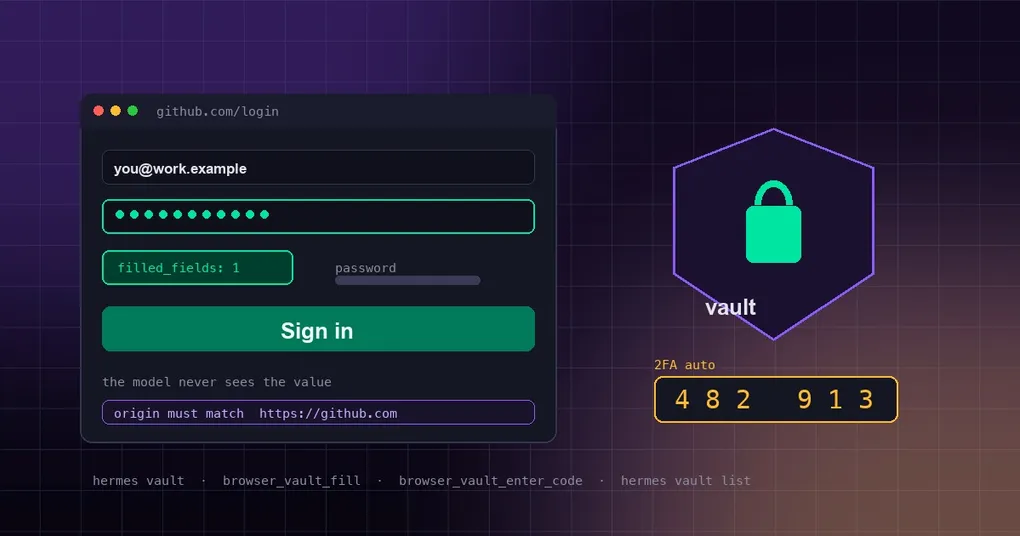
You ask Hermes to log into your admin dashboard and flip a config value. It navigates there fine, then stops dead at the sign-in form. Not because it can’t click — because only you know the password. So you paste it into the chat, and from that moment the plaintext lives in the session history, the logs, and the next round of context you send to the model. You traded a click for handing your password to the whole pipeline.
Hermes’ newly merged credential vault is aimed squarely at that. The agent walks to the sign-in page itself, types the identifier on its own, and Hermes injects the password server-side. What the model sees back is one line: {filled_fields: 1, origin: "https://github.com"}. The password never enters the conversation, the logs, the session database, or any process’s command line.
How the pieces split up
There are two layers: a store that holds logins, and browser tools that put them on the page. The agent only ever gets a handle plus visible metadata (label, identifier, origin). The actual secret is resolved at fill time by the backend and written straight into the page.
| Tool | What it does |
|---|---|
browser_vault_list |
List fillable logins — labels, identifiers, origins. Never passwords. |
browser_vault_save_login |
Save a new login from the page the agent is on |
browser_vault_fill |
Inject one login into the current page, origin-checked |
browser_vault_enter_code |
Handle the one-time-code step |
browser_vault_unlock |
Unlock an external manager (1Password / Bitwarden) |
Items live encrypted under ~/.hermes/vault/ (a Fernet key plus the vault file, both 0600) and are scoped per profile — the same isolation idea behind real-profile browsing.
The first time: it asks you on the sign-in page
The nicest part is the zero setup. You don’t have to learn hermes vault add or hunt for a toggle first. Say “log into GitHub”, and when the agent reaches a sign-in page with nothing saved for that site, it prompts you right where you are:
- CLI / TUI — a two-step panel on the same modal sudo uses: the email/username is shown, then the password is typed hidden.
- Desktop — a “Save your github.com login?” card with labelled Email-or-username and Password fields and two buttons: Don’t save / Save & sign in.
Say save and Hermes encrypts it, binds it to the page’s origin, and fills it immediately. Decline and the tool returns save_declined; the agent stops asking for that turn. Either way the password never passes through chat — it was typed into a masked prompt, not into a message.
One design detail worth noting: these tools ride with the browser toolset, not behind a “vault has items” check. An empty vault is exactly when save-login is needed, and an earlier iteration hid the feature behind that check, which is why nobody found it.
2FA: three cases, three behaviours
Passwords aren’t the last step. The agent used to hit a wall here: the login classifier deliberately ignores one-time-code fields (a password must never land in an OTP box), and there was no tool for step two — so the only move was to ask in chat.
Now it splits three ways:
| What the site asks for | What Hermes does |
|---|---|
| A code, and the saved login carries an authenticator key (local vault, or a 1Password / Bitwarden item with a TOTP seed) | Generates the current code and enters it. Nobody is asked. |
| A code sent to phone / email / app, with no key saved | A small prompt appears in your surface (“Verification code for github.com”), you type it, Hermes enters it. The code never enters the conversation either. |
| A passkey, hardware key, or app approval tap | Nothing to type. The agent tells you to finish it on your device and waits for the page to move on. |
An authenticator key is the “setup key” — or the otpauth:// link — a site shows when you enable 2FA. Add it under Settings → Passwords & Logins → Add (an optional field), or in the hermes vault add wizard; items that carry one get a 2FA auto badge.
Code entry is deliberately conservative too: digits are typed one-per-field only when the widget is unmistakable — exactly as many controls as the code has digits, all maxlength=1, in the same form, adjacent. Otherwise the whole code goes in at once, so a page with promo, ZIP, or referral “code” inputs never gets a spray of digits.
Already on 1Password or Bitwarden? Nothing to enable
If the op or bw CLI is installed and signed in, Hermes picks it up automatically and its website logins become fillable handles alongside your local ones. Handles are namespaced by backend — vault_… for local, op:…, bw:… for managers — so the tools need no schema change to route to the right one.
The first time it needs one of those logins it asks you to unlock the manager: masked prompt, once per session, expiring after 30 minutes idle. The master password goes to the manager’s own CLI through its non-interactive channel (op signin on stdin, bw unlock --passwordenv in the child’s environment). Hermes keeps only the session token in memory — nothing on disk, nothing in env backups — and never sees the master password, the token, or any login.
Prefer not to use a detected manager at all? hermes vault sources --disable bitwarden, or the switch in Settings.
Paying and filling addresses: every card fill needs your nod
Cards and addresses are saved the same way — once, bound to the checkout site, filled only there. The difference is the confirmation: every card fill asks you first, through the same approval prompt as a dangerous command, and declining writes nothing. Address fills need no confirmation.
The other boundary worth memorising: headless sessions cannot fill cards. Cron jobs, webhooks, and the API server have nobody to click confirm, so those fills are refused. A prompt injection that reaches a checkout page can ask — it cannot spend. It’s the same principle as unattended approvals: when nobody can answer, the default is no, not yes.
Managing it from the CLI
Desktop handles everything under Settings → Passwords & Logins; the CLI side is four subcommands:
# Interactive add for a login, card, or address. The password goes through
# getpass — it is never accepted as a command-line argument.
hermes vault add
hermes vault add --kind payment     # payment card
hermes vault add --kind address     # shipping / billing address

# Metadata only: handle, source, kind, label, identifier, origin
hermes vault list

# Remove by handle
hermes vault rm vault_3f9c1a

# Which password managers were detected; disable or re-enable one
hermes vault sources
hermes vault sources --disable onepassword
hermes vault sources --enable onepassword
Labels, site origins, and login identifiers are visible metadata — the agent can read them and type the identifier itself. Passwords and card values are not.
One clarification, because the name overlaps: this vault is not the external SecretSource from v0.19. SecretSource reads API keys for Hermes out of Bitwarden Secrets Manager or 1Password into environment variables, configured under secrets. The credential vault stores website logins, cards, and addresses, configured under vault. Similar names, unrelated jobs.
Headless sessions (cron, webhooks, the API server)
Nobody can answer a prompt there, and the failure modes are distinct:
- Locally saved logins keep working — no prompt needed.
- A locked password manager reports
unavailable_in_this_session. - No saved login for the site reports
prompt_unavailable.
To make 1Password usable unattended, give it a service account token — set it in OP_SERVICE_ACCOUNT_TOKEN and the master-password prompt goes away:
vault:
  onepassword:
    enabled: true                      # false opts OUT of a detected manager
    account: ""                        # `op --account` shorthand; empty = default
    service_account_token_env: OP_SERVICE_ACCOUNT_TOKEN
  bitwarden:
    enabled: true
    binary_path: ""                    # absolute path to bw; empty = PATH
What this does and does not guarantee
“The model never sees the password” is easy to over-read, so it’s worth being precise.
It does keep the password out of the model’s context through Hermes — not in tool results, logs, the session database, or any process’s argv. Fills happen over the supervised browser session’s direct CDP socket, and the origin is checked again inside the page immediately before the write: it must match the saved origin exactly, or the fill is refused.
It does not protect you from the page itself. Once a password is typed into a site, that site — and any script it runs — has it, exactly as when you type it yourself. On a cloud browser backend the vendor’s browser sees the page like any other. Origin binding guards against filling on the wrong site, not against a compromised right one.
The store itself is local encryption, which is a separate mechanism from opt-in OS-keychain encryption: the vault uses a Fernet key plus 0600 files and does not touch the system keychain.
Release status: main only, for now
As of this writing the feature has not reached any tagged release. The latest version, v0.21.1 (tag v2026.9.7, released September 7), contains no agent/vault_backends/, tools/browser_vault_tool.py, or hermes_cli/vault.py — those landed on main on September 10.
So:
hermes updateto v0.21.1 will not get you this. Wait for the next tagged release to carry it.- To use it today you need to track
main(the git install path) and accept that main moves daily.
Either way, the first test after your next upgrade is the same one line: ask the agent to log into some site, and watch whether it stops at the sign-in page and asks — for the first time — whether you want to save that login.