When Your Fingers Hit Esc: Vim Keybindings for the Hermes CLI Composer (Plus the Branch Name in Your Status Bar)
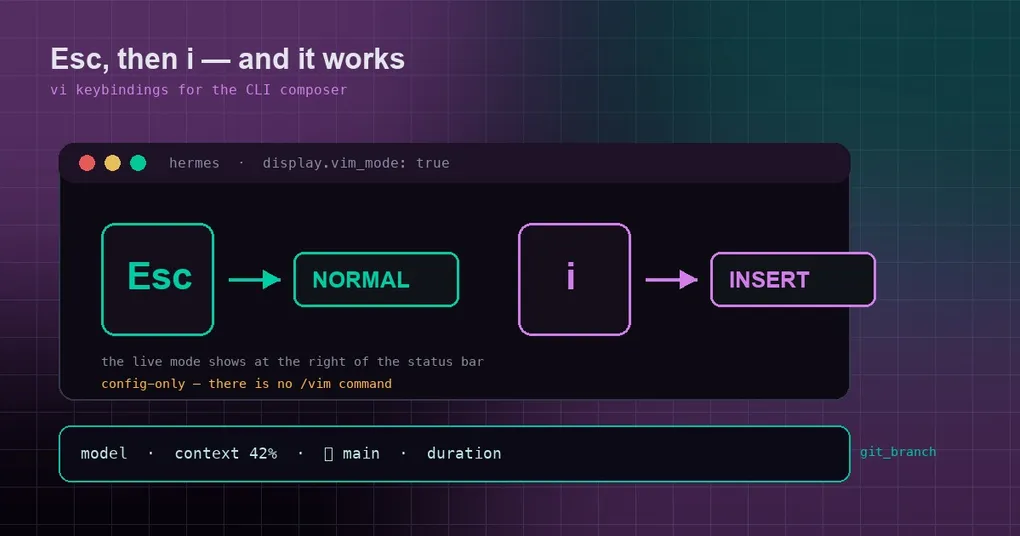
You have typed a long prompt into Hermes, and right before hitting Enter you notice a misspelled word in the middle. Your fingers press Esc and then dd — and the composer does absolutely nothing. Under the default emacs bindings, Esc is not “leave insert mode”; it is a cancel/clear key, and dd simply became two characters of text. If you have spent a decade in vim, that half-second of friction is hard to explain to anyone who hasn’t.
There is now an official answer. The classic CLI composer can use vi/vim keybindings — and the setup is smaller than you would expect: one config key, and no new slash command.
Turning it on: display.vim_mode
Add a line under the display section of ~/.hermes/config.yaml:
display:
  # CLI only: vi/vim keybindings in the input composer (Esc → NORMAL, i → INSERT)
  # The live NORMAL / INSERT / REPLACE mode shows at the right of the status bar.
  # Config-only, read at startup.
  vim_mode: true
Then open your config with hermes config edit (or your own editor), save, and restart Hermes.
One trap to get out of the way first: there is no /vim slash command. An early iteration of this feature shipped one with on|off|status subcommands, but it was removed before the merge — for a sensible reason. Its neighbours (/statusbar, /battery, /timestamps) toggle display items for the moment, while keybindings are an editing habit, and binding them to configuration is more consistent than flipping them session by session. So if you see /vim on written up somewhere else, that is the discarded intermediate state — typing it does nothing at all.
What it actually feels like
Behavior matches what your fingers expect:
- Esc enters NORMAL mode, where keys are commands rather than text;
i(ora,o, and friends) returns to INSERT mode for ordinary typing;- the status bar shows the current mode at its right edge — one of
NORMAL,INSERT, orREPLACE. This is genuinely useful, not decoration: in a multi-line prompt, forgetting which mode you are in is the classic small annoyance, and a persistent label removes most of the “why is nothing happening when I type” moments.
That label is live, following your Esc and i presses rather than being fixed at startup. Under the hood the status bar builds it dynamically from the current editing mode (_vim_mode_label in cli_status_bar_mixin.py).
And if you have never used vim? The default is off, which keeps prompt_toolkit’s standard emacs bindings — change nothing, notice nothing. That opt-in posture is exactly why this landed as a config switch.
A companion worth knowing: your current git branch in the status bar
While we are on the status bar, there is a second “off by default, turn it on deliberately” field: the current git branch.
On a machine with several repositories and worktrees, “which branch is this session actually on” is a frequent and consequential question — especially after an agent has edited files for you and you want to be sure which branch took the hit. Pin it to the status bar and it is always one glance away:
display:
  status_bar:
    # Non-empty = only these fields show (built-in order kept; config controls
    # visibility, not ordering). An empty list = the default field set.
    fields: ["model", "git_branch", "duration"]
Available fields include model, context_pct, cache_hit, latency, tps, compressions, bg_tasks, bg_subagents, goal, git_branch (rendered as ⎇ branch), duration, focus, yolo, battery, title, and total_tokens. Two rules matter:
- A non-empty list is a whitelist: only the fields you name are shown; an empty list restores the default set. Ordering stays built-in — configuration only decides visibility.
- Narrow terminals drop fields automatically. When the window gets tight, wide fields such as
context_detail,prompt_elapsed, andidle_sinceare removed rather than squeezed. That is intended behavior, not a broken config.
If you merely want to toggle the status bar itself, /statusbar does that; the field list is configuration.
Caveats
- Restart after editing.
vim_modeis read at startup, so a hot config edit will not flip the mode in a session that is already running. - It only touches the composer. The change applies to the input box where you type prompts, not to every other interaction surface, and certainly not to how the agent works.
- CLI-specific. Keybindings belong to the classic CLI composer; the desktop app and other TUI surfaces have their own input logic. Do not expect one switch to change them all.
- It is not all of vim. This is prompt_toolkit’s vi editing mode: movement, deletion, insert-mode entry — everyday editing, not a Neovim session with plugins and elaborate registers.
- The feature has precedent. The original request is issue #4254, and around the same time GitHub Copilot CLI brought vim mode to general availability (its v1.0.84-2 notes name both a
/vimcommand and aneditorModesetting). Both projects agree on the underlying point: terminal editing habits deserve to be respected.
If you are tuning your CLI setup, three related pieces here are worth a read: the Ctrl+P command palette guide, the status-bar metrics deep dive, and removing the max-turns ceiling for long sessions. Setting up a machine from scratch starts at the install guide.
The short version
One sentence: want vim keys? Write display.vim_mode: true and restart — and do not go looking for a /vim command, because there isn’t one.
Three things to carry away:
- Off by default, so nothing changes unless you ask for it; once on, the status bar permanently shows NORMAL / INSERT / REPLACE.
- Consider adding
git_branchtodisplay.status_bar.fields— in a multi-branch environment it prevents a whole class of silly mistakes. - This change merged after the v0.21.2 tag, so it currently lives on
mainrather than in a tagged release;hermes updategetsmain, or wait for the next release.
For anyone who carries vim muscle memory into the terminal, it is a small change you will use several times a day.