Running Hermes Inside Codex: A Community MCP Extension
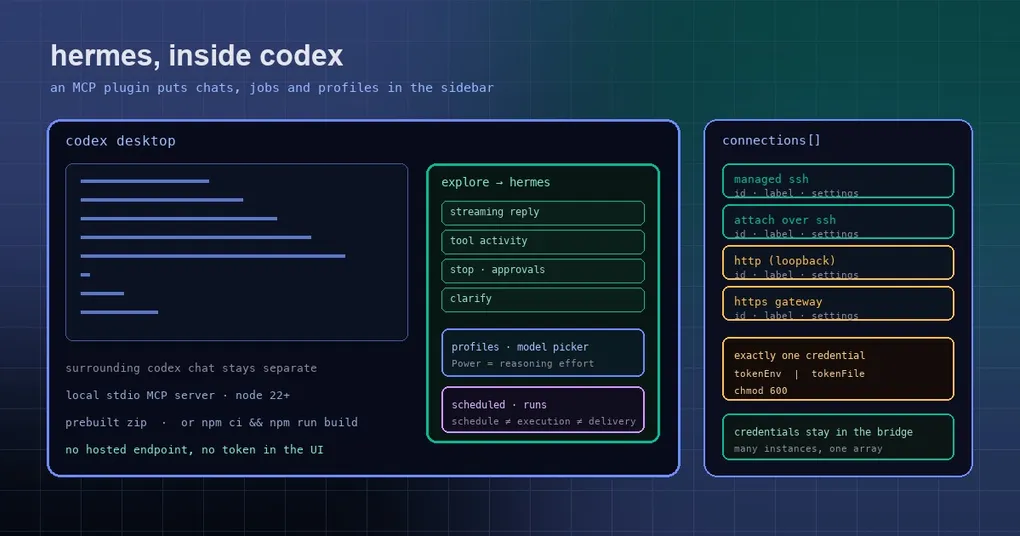
Your day probably looks like this: you are editing a module in Codex, mid-thought you wonder whether the Hermes cron job fired today and what that session actually read last night, so you switch to a terminal and run hermes --continue, or just open a second window. Two agents, two interfaces, two contexts — and what gets lost in the switching is usually the sentence you were about to ask.
A community project, hermes-chatgpt-extension, attacks exactly that switching cost: it embeds Hermes as a panel inside Codex (and the Codex desktop app for ChatGPT), so chats, profiles, model selection and scheduled jobs are visible from Codex’s sidebar.
What it is, and what it is not
It is an MCP plugin: a local stdio MCP server (the bridge) wraps Hermes’ desktop JSON-RPC/WebSocket API and REST management routes into a Codex plugin surface. It is written in TypeScript, MIT-licensed, created September 30 and still being updated on October 1.
Three boundaries are worth stating up front so you do not expect the wrong thing:
- It does not turn Hermes into a Codex tool. The interface follows Codex’s chat and sidebar conventions, but Hermes still runs its own agent, tools, memory and scheduler; the surrounding Codex conversation stays separate.
- It does not provide a hosted MCP endpoint. The server is local stdio, so this is “use Hermes inside the Codex desktop app,” not “reach your Hermes from ChatGPT in the cloud.”
- It does not take custody of your credentials. Upstream provider credentials stay in the local bridge process; the embedded UI receives connection labels and chat data, not tokens or API keys.
Install: two paths, Node 22+ either way
Three prerequisites: Node.js 22 or later (available to Codex as node), a Codex desktop version that supports local plugins and MCP Apps, and an installed, configured Hermes backend that exposes the desktop JSON-RPC/WebSocket API plus the REST management routes.
From the prebuilt ZIP (no npm install, no build):
# download hermes-chatgpt-extension-VERSION.zip from the releases page and extract it
cd <extracted-directory>
node scripts/verify-plugin.mjs
The ZIP ships the compiled server and a self-contained UI, and each release also provides a -source.zip and SHA256SUMS so you can check both. Note that GitHub’s automatically generated Source code download is the source build, not this package.
From source:
git clone https://github.com/intellectronica/hermes-chatgpt-extension.git
cd hermes-chatgpt-extension
npm ci
npm run build
node scripts/verify-plugin.mjs
Then register it in Codex’s local marketplace:
node scripts/install-plugin.mjsThe installer copies the plugin into ~/.codex/plugins/hermes-chatgpt-extension and adds an entry to ~/.agents/plugins/marketplace.json, preserving an existing marketplace name and unrelated entries. Open the plugin detail link it prints and choose Enable in Codex — the script does not enable the plugin or restart the app for you. For updates, run --replace --dry-run first, then --replace --apply.
Configure: one connections array, four ways to connect
Keep the configuration outside the plugin directory so updates do not clobber it; the default path is ~/.config/hermes-chatgpt-extension/hermes.config.json:
mkdir -p "$HOME/.config/hermes-chatgpt-extension"
cp examples/config.ssh.json "$HOME/.config/hermes-chatgpt-extension/hermes.config.json"
Configuration is loaded in a fixed order: the --config argument, then HERMES_EXTENSION_CONFIG, then hermes.config.json in the bridge’s working directory, then $XDG_CONFIG_HOME/hermes-chatgpt-extension/hermes.config.json (or ~/.config/...). One design decision deserves credit: an explicitly selected missing or invalid file is an error, not something skipped — so you never end up believing you are on one profile while actually being on another.
A single connections array can hold several Hermes instances, switched from a selector in the footer. Four connection modes are supported:
| Mode | When to use it | Key fields |
|---|---|---|
| Managed SSH | Hermes lives on a remote host; let the extension start its own temporary backend | ssh.mode: "managed", ssh.host |
| Attach over SSH | A compatible backend is already running remotely; just connect | ssh.mode: "attach", remotePort, tokenFile |
| HTTP | A compatible hermes serve desktop backend |
baseUrl, tokenEnv |
| HTTPS | A gateway behind a reverse proxy | Same, and remote URLs must be HTTPS |
Managed SSH starts a token-protected loopback backend on a dynamically allocated port and owns that process and its tunnel, stopping the backend when the bridge closes. It uses your existing Hermes installation — it installs no software, edits no profiles, restarts no services. Because it generates its own credential, this mode forbids tokenEnv, tokenFile, remoteHost and remotePort.
Attach and HTTP/HTTPS each require exactly one credential source: tokenEnv (the name of an environment variable) or tokenFile (a small local file). On POSIX that file must belong to the current user and be owner-only:
chmod 600 /path/to/hermes.tokenHere is the pitfall worth its own paragraph: a desktop app may not inherit variables you exported in an interactive shell. When Codex launches the plugin, tokenEnv may simply have no value — a tightly permissioned tokenFile is the more reliable choice. Remote URLs must use HTTPS; plain HTTP is accepted only for loopback hosts such as http://127.0.0.1:9119.
What you can do once it is on
After enabling, open Explore → Hermes in Codex:
- Chat: streaming replies, Markdown and code rendering, visible tool activity, plus Stop, approvals and clarification questions;
- Profile grouping: conversations grouped under expandable profile sections, with drafts staying with their owning instance and profile;
- Models and effort: each profile’s real model catalogue and defaults, with a model selector and a Power control for reasoning effort;
- Scheduled jobs: view jobs and recorded runs for one profile or all of them, with schedule, execution and delivery status shown separately — far more useful than a single pass/fail;
- Archiving: archiving goes through Hermes, with a brief Undo, and retains the stored messages.
Hermes-tagged automated conversations are hidden by default; add "sidebar": { "showAutomatedChats": true } alongside connections to see them. Hermes’ own subagent visibility setting still applies.
When it is the right tool
If your workflow is “Codex for code, Hermes for automation,” this extension removes window switching and lost context — at the cost of accepting a third-party MCP plugin installed through a local marketplace. Treat it like any local plugin: read the install script, keep your configuration and token files out of source control and out of the distributable package, and use HTTPS or SSH for anything remote.
If remote OAuth has been your blocker, start with the OAuth over SSH guide; to read your own session and scheduling data well, the cost tracking guide and cron timezone and DST notes are good companions. For the MCP side of the mechanics, the MCP command reference is the systematic read.
The short version
Putting two agents in one window is worth more than saving a switch: it means you can see the automation side while you are still in the code — did the job run, what happened in the session, which model this profile uses. This extension wires things together rather than reinventing them; it does not change how Hermes behaves, it just surfaces interfaces that already exist. For multi-instance, multi-profile users it also makes “which one am I actually connected to?” explicit: one connection per instance, one group per profile. Visible isolation beats a convention you have to remember.