Stop squinting at a lone (1): Hermes now flashes the tab, the taskbar and your notifications
It is four in the afternoon. You parked Hermes in a tab to work through a task, then switched to another window to write code. Somewhere in there it stopped and waited for you to approve an rm -rf command, and the tab title quietly went from “Hermes” to “Hermes (1)”. That (1) was lost among a dozen tabs. When you came back two hours later, it had been sitting there the entire time, doing nothing.
This is not a Hermes-specific problem; it is the default failure mode of every background assistant: the signal it uses to get your attention is too weak. Weak enough that you have to go looking for it, and going looking for it is the first habit you drop when you get busy.
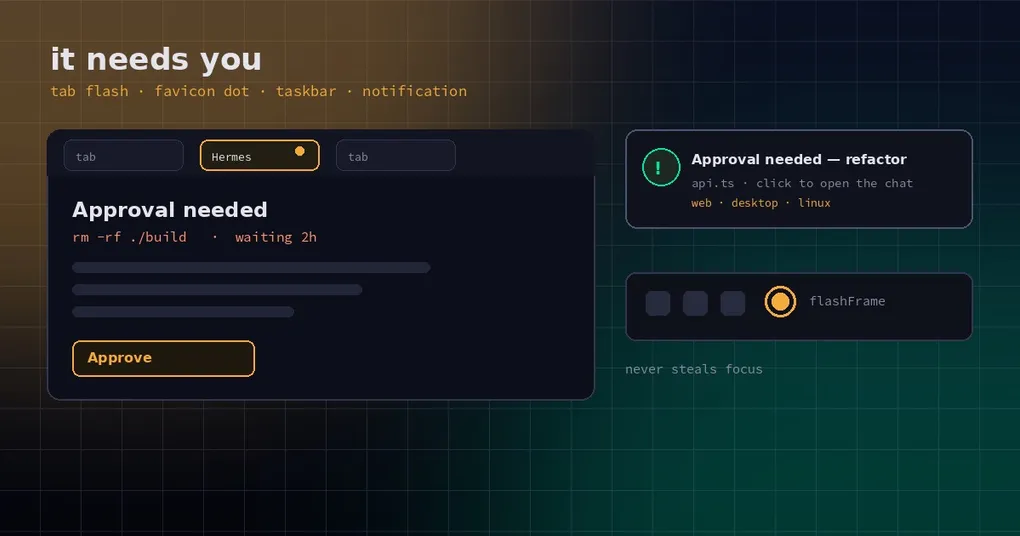
Hermes now treats that as an attention problem worth solving properly. The Webapp alternates the tab title and dots the favicon amber. The desktop app flashes the taskbar while the window is unfocused — a dock bounce on macOS, an urgency hint on Linux. And once you grant permission, the browser posts a real system notification that takes you back to that chat when you click it.
It used to be one (1). Now it is three layers
The layering is worth understanding, because it is deliberately restrained — each layer answers a different question about how sure Hermes is that you are not looking.
| Layer | When it fires | What you see | When it stops |
|---|---|---|---|
| Tab title flash | Webapp tab hidden or unfocused | Title alternates every second between the notification title (for example Approval needed — <chat>) and the normal title |
You return to the tab |
| Favicon dot | Same | An amber (#f59e0b) dot drawn over the icon |
You return to the tab |
| Browser notification | You clicked Allow yourself | A system popup; clicking focuses the tab and opens that session | You dismiss or click it |
| Taskbar flash | Desktop window unfocused when a system notification fires | Taskbar flash on Windows, Dock bounce on macOS, urgency hint on Linux | The window gets focus |
Notice the division of labour: the tab flash needs no permission at all. If the event happens and the tab is not in front, it flashes. Browser notifications require explicit permission, because browsers ignore — and sometimes penalise — permission prompts that no user gesture started. Before you allow, flashing is the only signal. After you allow, both work together.
Why the browser notification needs one click from you
This deserves its own section, because it explains the “I configured notifications and never saw one” experience.
The old behaviour asked for permission at the moment the event arrived: an event fires, Hermes calls Notification.requestPermission(). But Chrome, Safari and Firefox all require that a permission request be started by a user gesture — a click or a key press. A request started by a background event gets ignored or silently blocked, so you never even get the chance to say no.
Now permission is requested in exactly two places, both inside Settings, both by your click:
- Settings → Notifications → Browser notifications → Allow
- or the Send test notification button next to it
Hermes never asks on page load and never asks from an event. If you never click, it only flashes the title and never pops anything up. That is a deliberate trade: better to interrupt you one fewer time than to fight the browser’s rules.
There is a second catch: the browser Notification API only exists in a secure context. http://localhost and http://127.0.0.1 count as secure, and so does an HTTPS address like Tailscale serve. But if you opened the Webapp from another machine as http://192.168.x.x:8317, that is plain HTTP and notifications are unavailable. The settings row says so directly — it tells you HTTPS is needed, for example Tailscale serve — and the title flash still works. That is exactly why flashing was built to depend on nothing.
Desktop: a taskbar flash, a dock bounce
The desktop app takes a different route: it already had native OS notifications. What it lacked was something to do when a notification fires while the window is in the background and the notification itself gets swallowed by Do Not Disturb.
Now, when a system notification fires while the window is unfocused, the Electron main process calls BrowserWindow.flashFrame(true): the taskbar icon flashes on Windows, the dock icon bounces on macOS, the window raises an urgency hint on Linux. Focus clears it immediately (flashFrame(false)). The original patch came from a community contributor and was cherry-picked with authorship preserved.
The important design rule is that it never steals focus. A flash means “hey, something needs you”; it does not drag your window to the front and it does not navigate anywhere by itself. Movement happens only after you click a notification.
Turning it on and off: it rides the existing switches
The new signals do not introduce a parallel settings system. They reuse the desktop notification settings (Settings → Notifications, described as per device):
- Enable notifications is the master switch. Off silences every kind below, so nothing flashes either.
- Seven event kinds each have a toggle: Approval needed, Input needed, Response ready, Turn failed, Background task finished, Credit alerts, Plugin notifications.
- A kind you switch off does not flash and does not notify. If “Response ready” is the one that annoys you, turn that kind off rather than the whole feature.
- Send test notification proves the path: the desktop app uses the native channel, and the Webapp asks for permission first, then posts “Notifications are working.”
In the Webapp, the command is hermes webapp. To check whether the gateway is serving the Webapp at all and which address it registered, use hermes webapp --status. The address it prints is your evidence for whether you are in a secure context.
When it still will not get your attention
Some honest boundaries, so you do not spend an evening wondering why nothing happens:
- Nothing flashes while the window is focused. Completion alerts were always for when you are away; if you are staring at the window, Hermes assumes you are watching.
- A plain-HTTP LAN address gets no browser notifications, only the title flash.
- Do Not Disturb eats system notifications, but not the tab flash or the taskbar flash — that is the point of layering.
- A suspended browser (a sleeping laptop, for instance) will not pop anything mid-sleep. When the tab becomes visible again, the flash resumes.
- Clicking a notification opens the chat; it never approves anything for you. Approvals stay manual.
Can you use it today
The change landed on main on 2026-10-30 (PR #146882, implementing a community request; the original patch #146542 was salvaged with its author credited) and shipped in v0.22.6 (2026-11-02) — upgrade via an installer or hermes update and it is there.
To try it now you need to track main (a source install), or wait for the next release. When it does ship, remember to click Allow once in Settings — otherwise you will only see the title flash, conclude the feature is broken, and go back to watching for a (1).
If the opposite problem is the one that bothers you — too many “job finished” notices — we wrote about how Hermes coalesces finished background tasks into a single notification: /blog/hermes-background-notification-batching/. That piece is about too much signal; this one is about too little. Same problem from both ends.