The approval prompt that used to vanish mid-coffee now waits for you
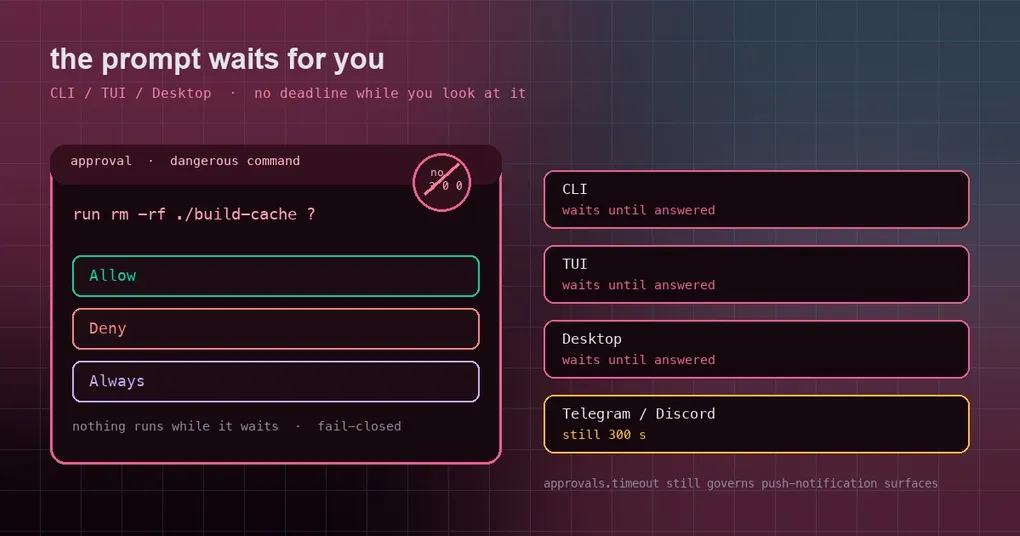
You ask your agent to clear out a build cache you have not touched in months. It asks whether it may run the command. You hit Enter and walk off to refill your coffee. When you come back the prompt is gone, the command never ran, and the transcript says one thing: approval timed out. You did not answer wrong — the clock was simply faster than you.
Update (2026-10-03): Upstream reverted this change the same night it merged (PR #130826 — wait-forever prompts had already been rejected as a direction, and they left
hermes chat -qhanging with nobody to answer). CLI, TUI and Desktop approval and clarify prompts are back underapprovals.timeoutandagent.clarify_timeout. Full reasoning and what to do instead: the revert write-up.
That clock was approvals.timeout, 300 seconds by default. It now splits along a very plain line: is the person looking at the screen? CLI, TUI and Desktop prompts stay up until you answer, interrupt the turn, or close the session. Messaging platforms keep their deadline. Here is what changed and what it means for your setup.
First, the five-minute wall
Approvals live by one non-negotiable rule: a timeout is not a yes. It is not “nobody answered, so go ahead” — it is “nobody answered, so don’t”. That is the safe default, but it costs you a silently dropped action, and in the transcript it looks almost identical to “the command failed”.
Why five minutes? The config comments are refreshingly blunt about it: approvals on messaging platforms arrive as a push notification, and 60 seconds proved too tight — on Telegram and Discord the prompt often expired before the user reached their phone. So the default was raised to 300.
The problem is that 300 seconds makes sense for a push notification and no sense at all when the human is already sitting in front of the prompt. You stepped away for a glass of water, and what you came back to was not “still waiting”, it was “you already missed it”.
The new rule, split by surface
| Surface | How long the prompt stays open |
|---|---|
Interactive CLI (hermes chat) |
until you answer or interrupt the turn |
| TUI | same |
| Desktop app | same |
| Telegram / Discord / Slack and other messaging platforms | still approvals.timeout (300 s by default) |
| ACP editors and approval transport plugins | still approvals.timeout |
The dividing line is not which surface is fancier — it is whether the user can see the prompt immediately. On a messaging platform an approval is a push that may sit unread for hours, and the platform’s own buttons expire. Those surfaces need a deadline. On the CLI, the TUI and the desktop, the prompt is painted on the screen you are already looking at, so there is nothing to miss.
One boundary worth keeping in mind: nothing runs while it waits. The contract has not changed — this is still fail-closed, no tool is released while the prompt is up, and interrupting it counts as a denial.
How it is wired
The change touches several modules, but the core is a switch bound once per turn:
| Where | What it does |
|---|---|
tools/approval_context.py |
adds set_prompts_wait_for_answer() / reset_prompts_wait_for_answer() behind a per-turn context variable, and makes approval_wait_seconds() the single resolver for the built-in approval window |
agent/deadline.py |
MAX_SAFE_TIMEOUT_S: 365 days off Windows, and on Windows the DWORD-millisecond ceiling (about 49.7 days) — both semantically “unbounded”, sized so Lock.acquire / Thread.join bounds derived from it cannot overflow |
tools/approval_human_wait.py |
human_wait_ceiling() returns the approval window plus a 60-second margin, so the batch-deadline loop and the authorization gate’s serialization lock share one ceiling instead of each inventing its own |
hermes_cli/cli_chat_turn_mixin.py |
binds the switch around each turn, resets it in teardown |
tui_gateway/prompt_turn.py |
TUI and Desktop share this backend: bound when the turn’s input is prepared, reset on the way out |
One subtle bug got fixed alongside it. The batch-deadline loop can read the human-wait ceiling from a context that never saw the binding, which would make an unbounded prompt look like a wedged window and keep extending a batch deadline. It now reads the real ceiling, and an unbounded prompt is excluded outright rather than mis-measured. Messaging windows stay clamped exactly as before.
The exception to remember: single-query mode
hermes chat -q "..." has nobody sitting next to it, so it deliberately does not bind the switch and still uses approvals.timeout. It usually never waits at all: approvals.single_query_mode defaults to deny, so a dangerous command is refused immediately and the agent is pushed to find another route.
If you run single-query sessions in scripts or CI, do not count on “waiting longer” — there was never anyone there to press the key.
What to check on your machine
- Interactive use no longer needs a raised timeout. If you had pushed
approvals.timeoutinto the thousands of seconds just to give yourself room, you can put it back: it now only governs messaging, ACP and plugin transports. - Tune messaging separately.
hermes config set approvals.timeout 600affects only those surfaces; the key is documented with the rest of the config in the hermes config reference. - Stop expecting a timeout to mean yes. To cut down on interruptions, use smart approvals; to open things up, there are yolo tiers; to forbid whole classes of commands, use the deny list. The bigger picture is in the unattended approvals guide.
- Dry-run before you change policy. Approval dry-runs and self-checks show which rule matches what verdict without executing anything.
- Cron and unattended platforms still deny. Their defaults are unchanged, and that is the point.
The takeaway
What looks like “the prompt stops disappearing” is really one parameter split into two situations: a human is watching, so there is no deadline; nobody is watching, so there must be one. The first case stops you from losing an action to your own coffee break. The second keeps the push-notification path honest.
The rule of thumb is short enough to memorise: if the prompt is painted on the screen you are looking at, it waits for you; if it was sent to your phone, it has to expire.